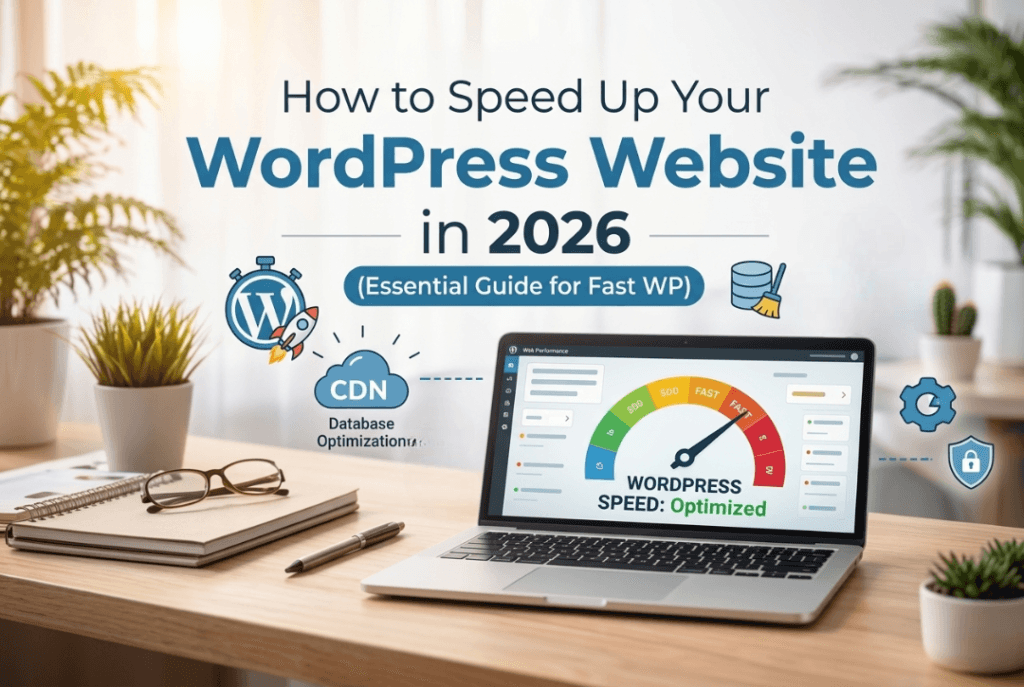
Your WordPress website has a beautiful design. Your services are excellent. But visitors leave before they read your headline because your website takes 5, 6, even 8 seconds to load on mobile. Every second of delay costs you clients and Google rankings. I have optimized dozens of WordPress websites for clients worldwide. Here are the exact fixes that actually work in 2026 not generic advice, but the specific steps that move the needle.
Why This Problem is Worse Than You Think
Speed Up Your WordPress Website in 2026. The average WordPress website loads in 2.5 seconds on desktop and 8.6 seconds on mobile in 2026. Only 44% of WordPress sites pass all three of Google’s Core Web Vitals on mobile. That means more than half of all WordPress websites are actively hurting their Google rankings right now.
The user behavior data is direct:
| Load Time | What Happens |
|---|---|
| Under 1 second | Maximum engagement nearly everyone stays |
| 1-2 seconds | Most users stay |
| 2-3 seconds | Some users leave |
| 3-5 seconds | 53% of mobile visitors abandon |
| 5+ seconds | 90%+ of visitors leave permanently |
A 1 second improvement in page load time increases conversions by 7%. For an eCommerce store doing $5,000/month, that is $350/month in additional revenue from one speed improvement alone.
Google also uses Core Web Vitals as a direct ranking factor. A fast, technically sound page is increasingly required to appear in Google AI Overviews the new search feature driving significant organic traffic in 2026. Slow sites lose rankings to faster competitors even when content quality is comparable.
Step 1 Diagnose Before You Fix (Most People Skip This)
The biggest mistake is applying random fixes. Diagnose the specific problem first then fix it in the right order.
Use these tools:
| Tool | URL | What It Shows |
|---|---|---|
| Google PageSpeed Insights | pagespeed.web.dev | Performance score, Core Web Vitals, specific fixes |
| GTmetrix | gtmetrix.com | Load time, page size, waterfall chart |
| Google Search Console | search.google.com/search-console | Core Web Vitals from real users |
| WebPageTest | webpagetest.org | TTFB, detailed technical analysis |
Always test mobile, not just desktop. Google uses mobile first indexing your mobile score affects your rankings. Your desktop score is almost always significantly higher and gives a false sense of security.
The three numbers that matter most:
- TTFB (Time to First Byte) must be under 600ms. Above 600ms means hosting is your primary problem
- LCP (Largest Contentful Paint) must be under 2.5 seconds. Usually your hero image
- PageSpeed mobile score aim for 90+. Below 70 needs immediate action
Fix the biggest bottleneck first. If your TTFB is 2 seconds, no amount of image compression will make a meaningful difference until you fix your hosting.
Step 2 Fix Your Hosting First
Every other optimization sits on top of your hosting. A good caching plugin on slow hosting is like putting new tires on a car with a broken engine. You see some improvement the core problem remains.
Signs hosting is your bottleneck:
- TTFB consistently above 600ms in WebPageTest
- Server response time flagged in PageSpeed Insights
- Website slow even on a completely empty test page
The difference between shared hosting (400-800ms TTFB) and quality managed WordPress website hosting (80-200ms TTFB) is often the entire difference between passing and failing Core Web Vitals. Moving from cheap shared hosting to quality managed hosting often fixes LCP from “poor” to “good” without any other change.
Best hosting options for WordPress speed in 2026:
| Hosting | TTFB Range | Monthly Cost | Best For |
|---|---|---|---|
| Hostinger Business | 150-300ms | $3-6 | Small-medium websites |
| SiteGround | 100-250ms | $4-15 | WordPress-optimized |
| Cloudways | 80-200ms | $11+ | Performance-focused |
| Kinsta | 50-150ms | $35+ | High-traffic business |
| WP Engine | 50-150ms | $25+ | Managed WordPress |
One specific tip nobody mentions: Server location matters as much as server quality. If most of your visitors are in Pakistan or South Asia, choose a hosting server in Singapore or Mumbai not the USA or Europe. Hostinger lets you select your data center region during signup. A server 3,000km away responds significantly faster than one 12,000km away.
Also check your PHP version: Running PHP 7.4 instead of PHP 8.3 can mean 40-60% slower server processing on every page load. Go to Hostinger hPanel → Websites → PHP Configuration → update to PHP 8.3.

Step 3 Install and Configure a Caching Plugin
Without caching, WordPress rebuilds every page from scratch on every visit querying the database, executing PHP, assembling HTML. With caching, it serves a pre built static file instantly.
Best caching plugins in 2026:
| Plugin | Free Plan | Best For |
|---|---|---|
| LiteSpeed Cache | ✅ Full free | Most hosting setups |
| WP Rocket | ❌ $59/year | Premium best overall |
| W3 Total Cache | ✅ Good free | Technical users |
| FlyingPress | ❌ $60/year | LiteSpeed Cache alternative |
LiteSpeed Cache exact settings that work:
Go to LiteSpeed Cache → Settings and configure:
Cache tab:
- Enable Cache → ON
- Cache Mobile → ON
- Browser Cache → ON
Optimize tab:
- Minify HTML → ON
- Minify CSS → ON
- Combine CSS → ON
- Minify JS → ON
- Combine JS → Test carefully before enabling it breaks some plugins
Media tab:
- Lazy Load Images → ON (but see the critical note below)
- WebP Replacement → ON
Critical warning about Combine JS: Combining JavaScript files sounds logical fewer files means fewer requests. But in practice it frequently breaks WordPress plugins that depend on their scripts loading in a specific order. Always test your entire website thoroughly after enabling this. If anything breaks disable it. The speed gain from JS deferral is larger and safer anyway.
Expected improvement from caching alone: 25-50% faster load time.
Step 4 Fix Your Images (Biggest Single Win)
Images cause more WordPress speed problems than any other factor. A single uncompressed hero image at 4MB can destroy your entire PageSpeed score regardless of everything else you optimize.
Target file sizes:
| Image Type | Maximum Size | Format |
|---|---|---|
| Hero / banner | 150KB | WebP |
| Blog featured image | 80KB | WebP |
| WooCommerce product | 100KB | WebP |
| Profile / team photo | 60KB | WebP |
| Logo | 20KB | SVG preferred |
WebP format is the 2026 standard. WebP delivers the same visual quality as JPEG at 25-35% smaller file size. All modern browsers support it fully. There is no reason to upload JPEG or PNG for web use in 2026.
How to convert existing images:
- Squoosh.app free browser tool, best quality control
- TinyPNG.com fast bulk compression
- Optimole plugin automatically converts all images to WebP on delivery
The critical mistake most speed guides miss: Do NOT enable lazy loading on your hero image. Lazy loading tells the browser to delay loading images until they scroll into view. Your hero image is immediately visible above the fold lazy loading it delays LCP specifically. In Elementor, click your hero image → Advanced tab → Lazy Load → set to OFF for above-fold images only.
Also add this to your hero image in Elementor’s HTML or theme header:
<link rel="preload" as="image" href="your-hero-image.webp" fetchpriority="high">This tells the browser to load your hero image before anything else directly improving LCP.
Step 5 Enable a CDN
A Content Delivery Network stores copies of your website files on servers worldwide. A visitor in the USA gets files from a USA server. A visitor in Dubai gets files from a Dubai server. Nobody waits for files to travel from Pakistan.
Best free CDN in 2026:
| CDN | Free Plan | Best For |
|---|---|---|
| Cloudflare | ✅ Excellent | All websites first choice |
| Bunny CDN | ❌ ~$1/month | Budget performance option |
| Optimole | ✅ For images only | Image delivery |
Cloudflare free setup:
- Go to cloudflare.com → create account → add your domain
- Cloudflare scans existing DNS records automatically
- Copy the two Cloudflare nameservers provided
- Login to your domain registrar → update nameservers → save
- Wait 24 hours for DNS propagation
- In Cloudflare dashboard enable: Auto Minify (HTML, CSS, JS), Brotli compression, Always Use HTTPS
Cloudflare’s free plan includes servers in Singapore and Mumbai Pakistani visitors get served from nearby locations, dramatically faster than hosting in the USA or Europe alone.
Step 6 Optimize Your Elementor Settings
Most WordPress speed guides ignore Elementor-specific optimization entirely but Elementor adds significant CSS and JavaScript overhead that can be dramatically reduced.
Go to Elementor → Settings → Performance and enable:
- Improved Asset Loading → ON loads only the CSS needed for each specific page, not all Elementor CSS on every page. This is a major speed improvement.
- Inline Font Icons → ON reduces HTTP requests from font icon libraries
- Optimized DOM Output → ON cleaner HTML structure
Go to Elementor → Settings → Experiments and enable:
- Optimized CSS Loading → ON
- Improved Asset Loading → ON (if separate from above)
These Elementor-specific settings alone can improve your PageSpeed score by 8-15 points without touching any other settings.

Step 7 Choose a Lightweight Theme
Your WordPress theme loads code on every page. A heavy theme with built-in sliders, animations, and dozens of built-in features loads all that code even on pages that use none of those features.
Fastest themes in 2026:
| Theme | Load Size | Best For |
|---|---|---|
| Hello Elementor | 11KB | Elementor users best choice |
| GeneratePress | 30KB | All websites |
| Astra | 50KB | Beginners |
| Kadence | 60KB | Feature-rich but fast |
If you use Elementor, Hello Elementor is the only theme you need. It is built specifically for Elementor, adds zero redundant code, and loads 50x smaller than commercial themes like Avada or Divi. Switching from a heavy commercial theme to Hello Elementor alone can improve PageSpeed score by 10-20 points.
Step 8 Remove Unnecessary Plugins
Every active plugin adds code to every page load. Too many plugins equal a slow website regardless of how good each individual plugin is.
Target: Maximum 15-20 active plugins for a business website.
Audit your plugins with this process:
- Dashboard → Plugins → list every active plugin
- For each plugin, ask: “Is this actively used on my website right now?”
- If no deactivate and delete immediately
- Check for duplicates two security plugins, two backup plugins, two SEO plugins. Keep one of each.
Use Query Monitor plugin (free) to find the slowest plugins:
- Install Query Monitor → load any page → see which plugins add the most load time
- A single poorly coded plugin can add 0.5-2 seconds to every page load
- Identify and remove the heaviest offender sometimes this single action produces the biggest speed improvement of everything on this list
Step 9 — Fix Core Web Vitals Specifically
Google’s Core Web Vitals are three measurements that directly affect your search rankings:
LCP Largest Contentful Paint (Target: Under 2.5 seconds)
LCP measures how fast your main content usually your hero image loads on screen.
Fixes in priority order:
- Compress hero image to under 150KB in WebP
- Disable lazy load on hero image
- Add fetchpriority=”high” to hero image
- Fix hosting TTFB this is the biggest LCP factor
INP Interaction to Next Paint (Target: Under 200ms)
INP replaced FID in March 2024 and measures how fast your page responds when someone clicks or taps. Many sites optimized for the old FID metric have not updated for INP this is an opportunity you can take advantage of.
Fixes:
- Defer non-critical JavaScript LiteSpeed Cache handles this
- Remove heavy JavaScript animations that fire on every interaction
- In Elementor → disable motion effects on mobile specifically
CLS — Cumulative Layout Shift (Target: Under 0.1)
CLS measures page layout stability how much elements jump around as the page loads.
Fixes:
- Set explicit width AND height on every image in Elementor
- Avoid loading web fonts that replace system fonts mid-load use
font-display: swap - Set fixed dimensions on any embedded content (YouTube videos, maps)
- Do not insert content above existing content as the page loads
Check your Core Web Vitals from real user data: Google Search Console → Experience → Core Web Vitals. This shows actual data from real Chrome users visiting your site more reliable than PageSpeed Insights lab tests alone.
Step 10 Clean Your Database Monthly
Over time WordPress accumulates thousands of post revisions, spam comments, expired transients, and orphaned data. This slows database queries on every page load and the problem grows worse every month.
Install WP-Optimize (free) → Database → select all cleanup options → run monthly.
One realistic real-world result: Total Blocking Time reduced from 1,300ms to 420ms a 68% improvement achieved purely through JavaScript deferral, plugin cleanup, and database housekeeping, without changing hosting or redesigning the site.
The WordPress Speed Optimization Checklist 2026
| # | Task | Impact | Time Required |
|---|---|---|---|
| 1 | Test current speed PageSpeed mobile AND desktop | Foundation | 5 minutes |
| 2 | Check TTFB fix hosting if above 600ms | 🔴 Very High | 1-2 hours |
| 3 | Update to PHP 8.3 in hosting panel | 🔴 High | 5 minutes |
| 4 | Install and configure LiteSpeed Cache | 🔴 High | 30 minutes |
| 5 | Compress hero image WebP, under 150KB | 🔴 High | 15 minutes |
| 6 | Compress all images WebP format | 🔴 High | 1-2 hours |
| 7 | Disable lazy load on hero image | 🟡 High | 5 minutes |
| 8 | Enable Cloudflare CDN | 🟡 Medium-High | 1-2 hours |
| 9 | Switch to Hello Elementor theme | 🟡 Medium-High | 1-2 hours |
| 10 | Enable Elementor Performance settings | 🟡 Medium | 10 minutes |
| 11 | Audit and remove unnecessary plugins | 🟡 Medium | 30 minutes |
| 12 | Fix CLS set image dimensions | 🟢 Medium | 30 minutes |
| 13 | Clean database with WP-Optimize | 🟢 Medium | 15 minutes |
| 14 | Check Core Web Vitals in Search Console monthly | 🟢 Ongoing | 10 minutes |
How Much Does Professional Speed Optimization Cost?
| Service | Cost | What Is Included |
|---|---|---|
| Basic optimization | $30 — $60 | Caching, image compression, CDN setup |
| Full optimization | $80 — $150 | Everything above + Core Web Vitals fixes + Elementor settings |
| Full audit + optimization | $150 — $300 | Detailed audit, all fixes, performance report |
A one-time speed optimization investment pays back immediately through better Google rankings, lower bounce rates, and more conversions from existing traffic.
Check my WordPress services or contact me for a free consultation. Speed optimization packages start from $30.
Frequently Asked Questions
Q: What PageSpeed score should I aim for in 2026? A: Aim for 90+ on both mobile and desktop. 80-89 is acceptable for most businesses. Below 70 needs immediate attention. Always prioritize mobile Google uses mobile-first indexing and your mobile score directly affects search rankings.
Q: My desktop score is 95 but mobile is 55 why? A: Mobile connections are slower and mobile processors are weaker than desktop. Focus specifically on image compression to WebP format, JavaScript deferral, and disabling lazy load on your hero image. These three changes have the biggest mobile-specific impact.
Q: Is WP Rocket worth $59/year or is LiteSpeed Cache enough? A: LiteSpeed Cache is completely free and achieves excellent results for most WordPress websites. Try it first. Only consider WP Rocket if LiteSpeed Cache has compatibility issues with your specific hosting or plugins or if you want automatic critical CSS generation without manual configuration.
Q: Will speed optimization change how my website looks? A: No. Proper speed optimization improves performance without changing design or functionality. The only exception is removing very heavy visual effects like full-page video backgrounds or complex scroll animations but lighter alternatives exist for every visual goal.
Q: How often should I check my website speed? A: Check PageSpeed Insights once per month. Check Google Search Console Core Web Vitals report once per month. Run WP-Optimize database cleanup monthly. Check for plugin updates weekly outdated plugins are a common cause of both speed and security problems.
Q: Does Cloudflare free plan work well for Pakistani websites? A: Yes. Cloudflare free includes servers in Singapore and Mumbai, which serve Pakistani visitors significantly faster than hosting in the USA or Europe alone. It also includes free SSL, DDoS protection, and basic analytics at zero cost.